Harvard Agentic Science

Set up Claude Code and Codex in VS Code.

The easiest way to use Claude Code and Codex is in VS Code. We'll install VS Code, add the Claude Code and Codex extensions, sign in to both, and configure the recommended defaults.

Select your platform

The main difference is Command vs Control in keyboard shortcuts and which VS Code version to download.

Install VS Code

Download VS Code first, then come back here.

1

Download and install VS Code

Go to code.visualstudio.com, download VS Code, and drag the app into Applications.

Launch VS Code once so macOS can finish setting it up.

Go to code.visualstudio.com and run the Windows installer.

Accept the default options and open VS Code when the install finishes.

Install Claude Code + Codex

2

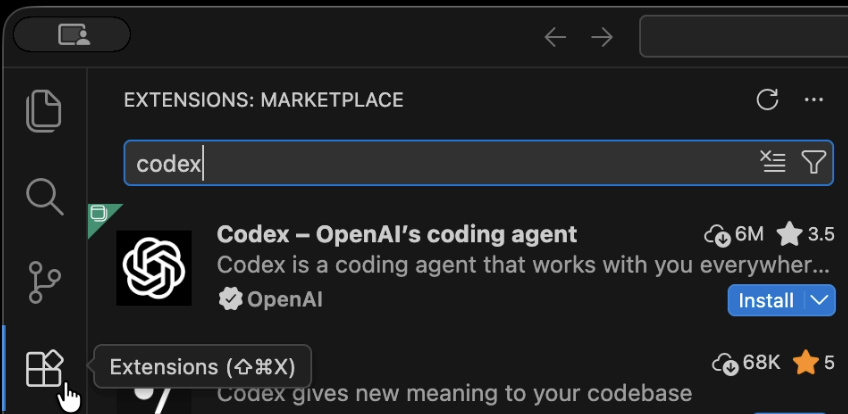
Open the marketplace and install Claude Code + Codex

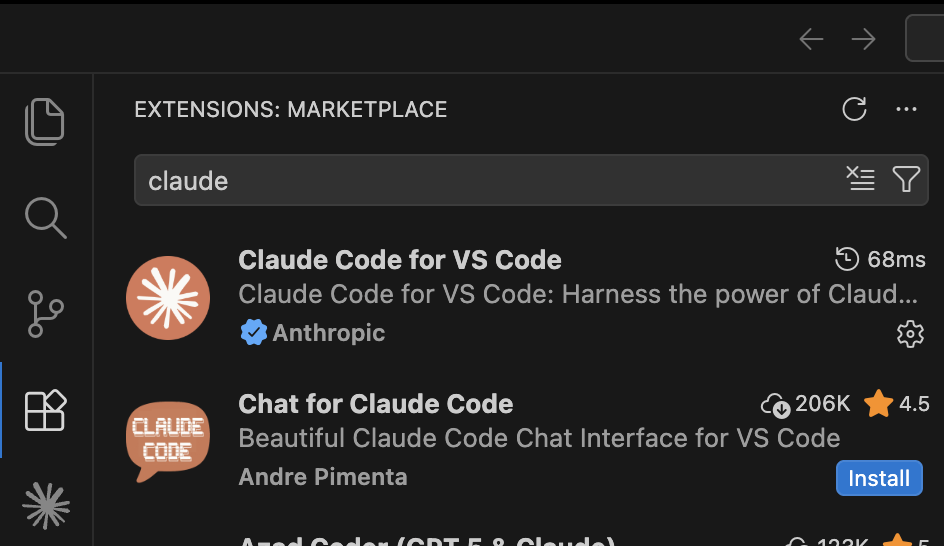
Press the four-square Extensions button in the sidebar to open the marketplace, then install both Claude Code and Codex.

3

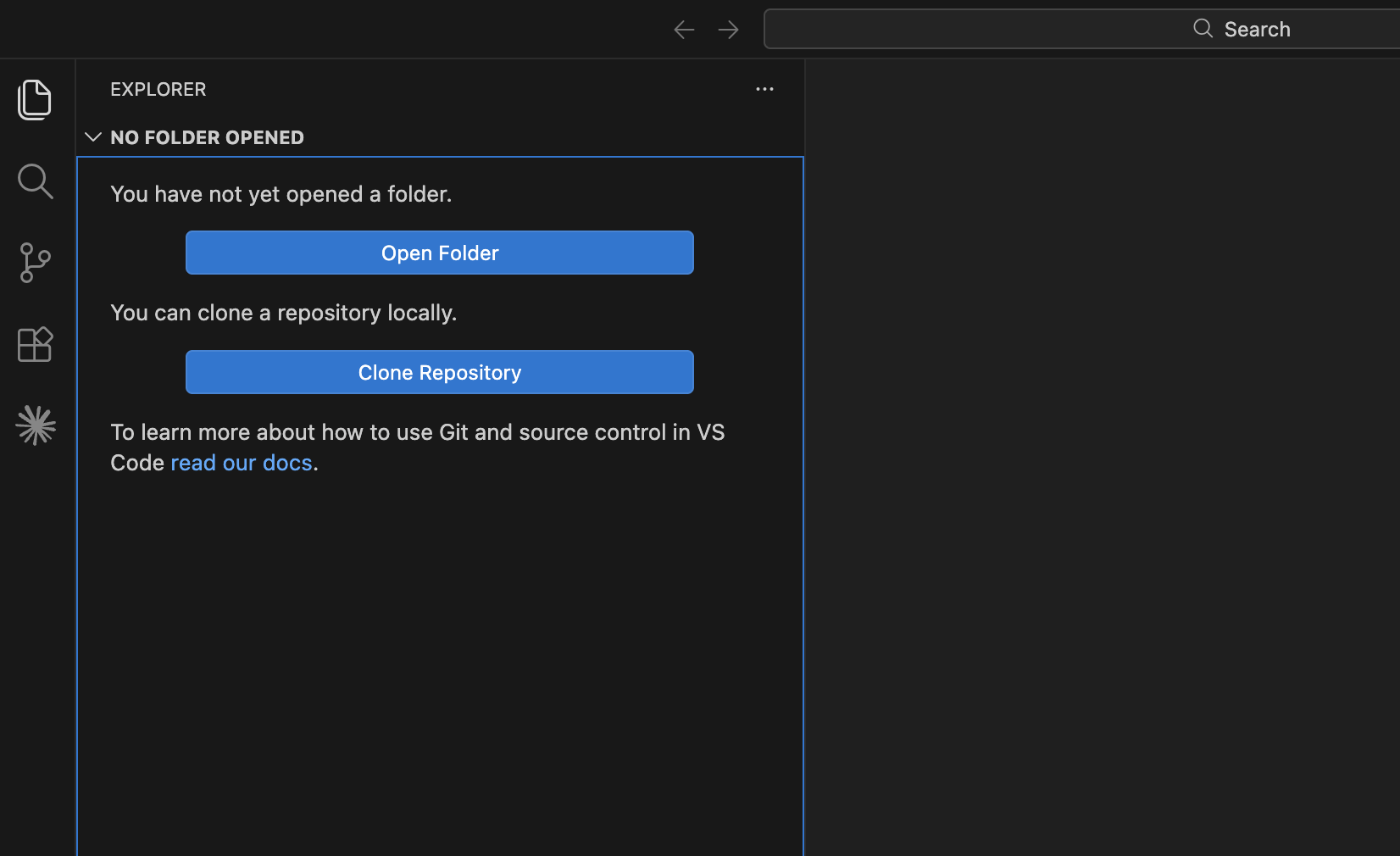
Open a folder in VS Code

Open a folder in VS Code so Claude Code and Codex have a workspace to work with. This is where you'll save your files related to the project, and Claude will only ever see what you put in this folder.*

The open folder stays isolated from the rest of your computer in that VS Code window. If you want to access a different folder, open a new VS Code window for that folder.

Anything in VS Code can also be reached via the search bar at the top. This is the Command Palette. The search bar, by default, only sees files within your current workspace. To access outside folders, settings, open the terminal, or even change the theme, you need to add a > before your search. This is usually done with the shortcut Command ⌘ + Shift + PCtrl + Shift + P.

* If privacy or destructive edits are a concern, use a carefully chosen workspace folder and review permissions before letting an AI tool act on files.
4

Open Claude Code

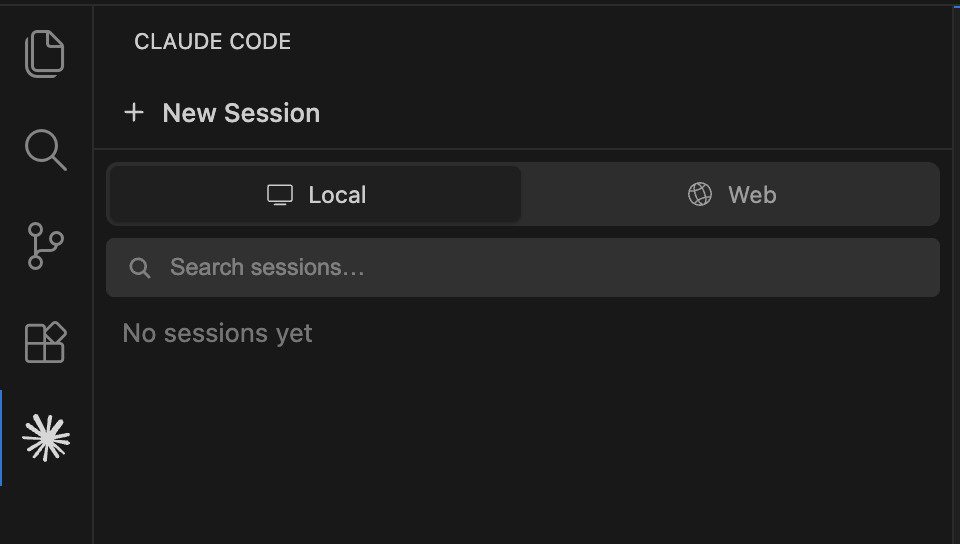
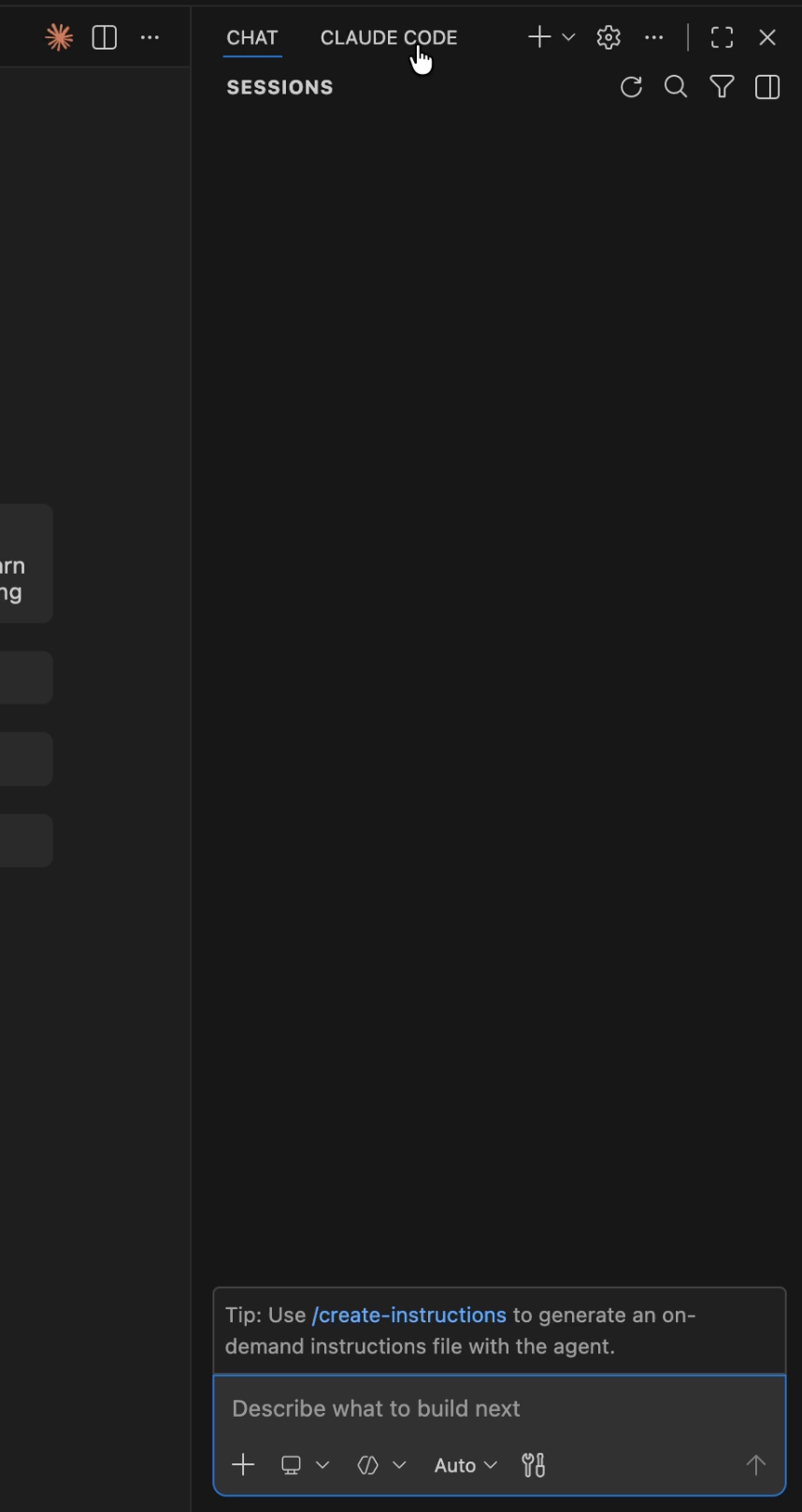
After the extensions are installed, open Claude in that same VS Code window. There are two easy ways of opening it: from the sidebar, or from the small icon near the top-right of the editor.

You can also use the Command Palette with Command ⌘ + Shift + PCtrl + Shift + P and Claude Code: Open in New Tab.

Sign in to Claude Code

Sign up at claude.ai if you do not have an account yet, then use the normal sign-in flow inside VS Code.

5

Sign in with your Claude account

When Claude Code asks you to sign in, follow the Anthropic login flow. It will open a browser window where you log in with your Claude account, then return you to VS Code.

Success looks like this: Claude opens in VS Code after signing in, and the panel accepts prompts normally.

Get familiar with Claude Code

Once you have signed in, take a moment to explore Claude's built-in controls.

6

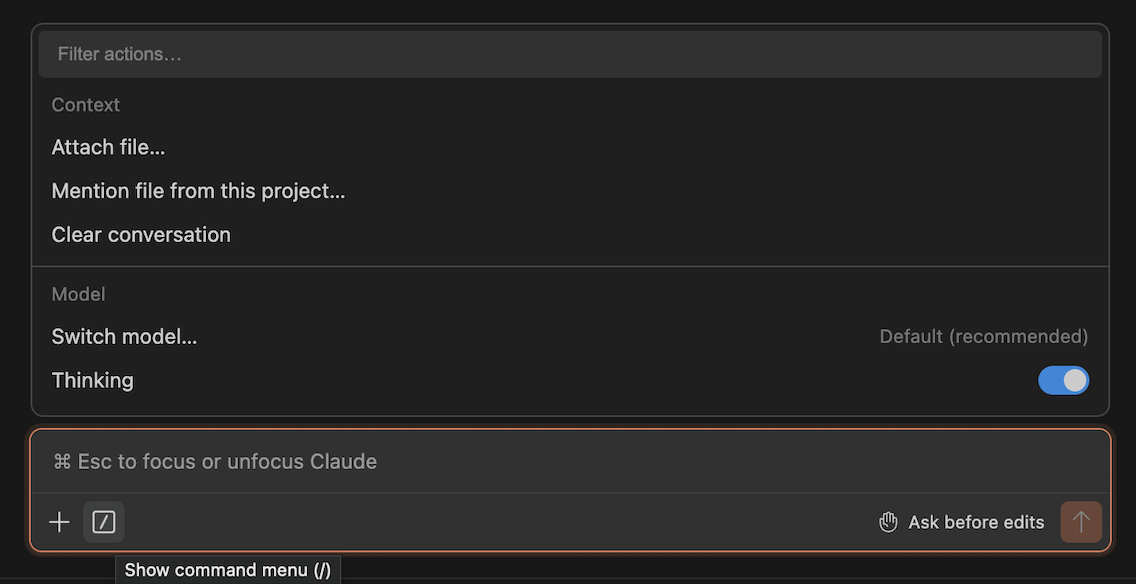
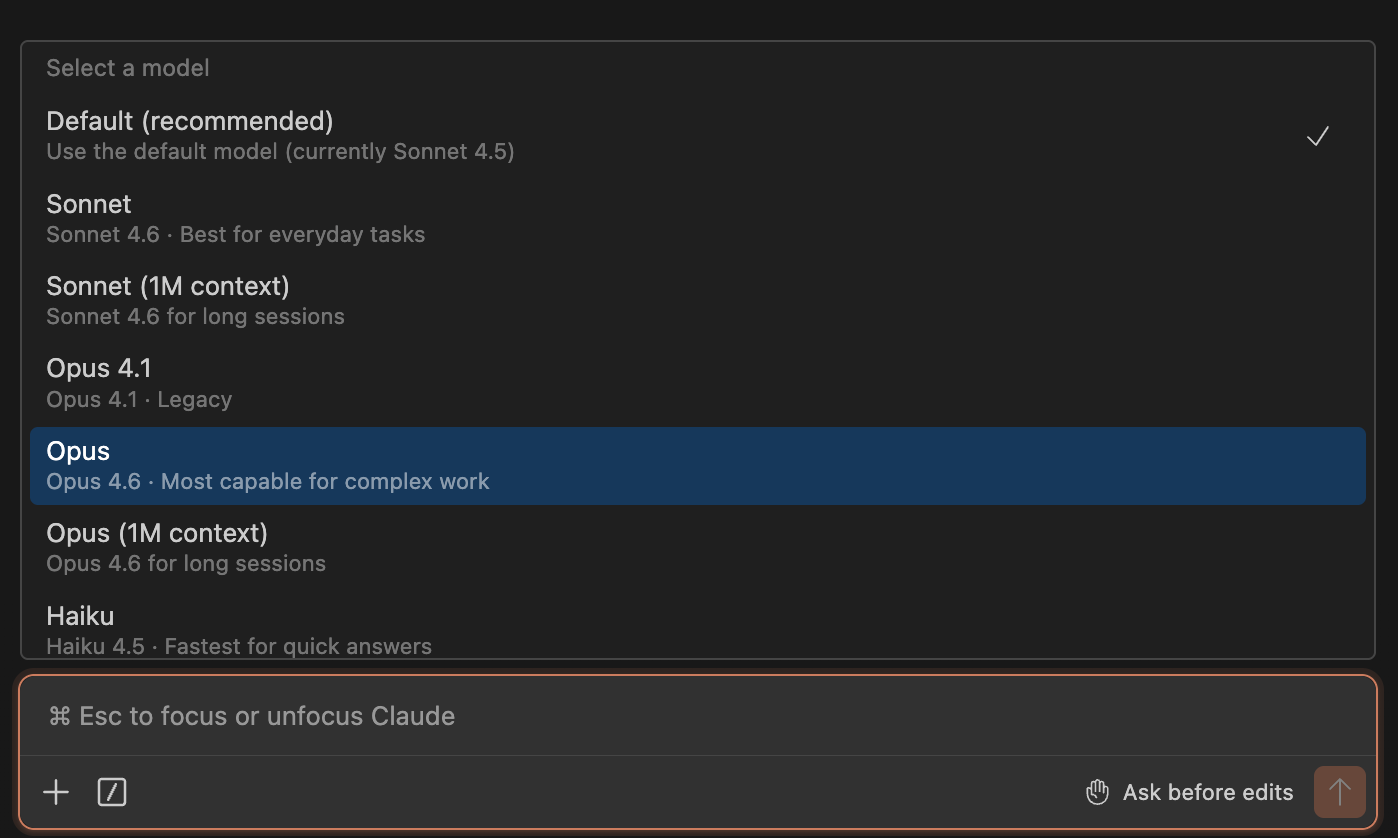
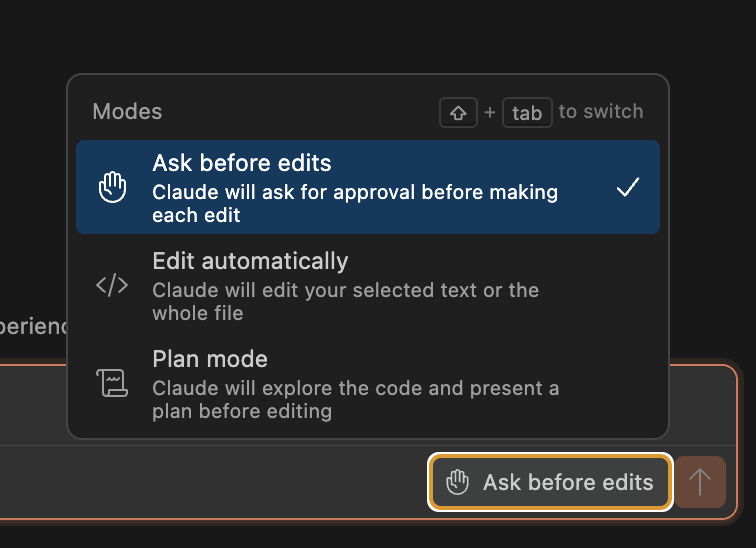
Access Claude settings with the bottom-left menu

Claude has many built-in tools which you can control and customize from this menu: extended thinking, model switching, and permissions.

Sign into Codex

All you need is a ChatGPT account.

7

Open Codex in VS Code

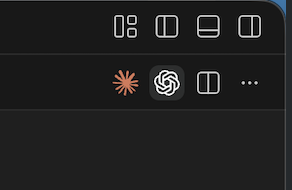
You can open Codex the same way you open Claude: from the sidebar, from the Command Palette with Command ⌘ + Shift + PCtrl + Shift + P, or from the Codex button shown below.

8

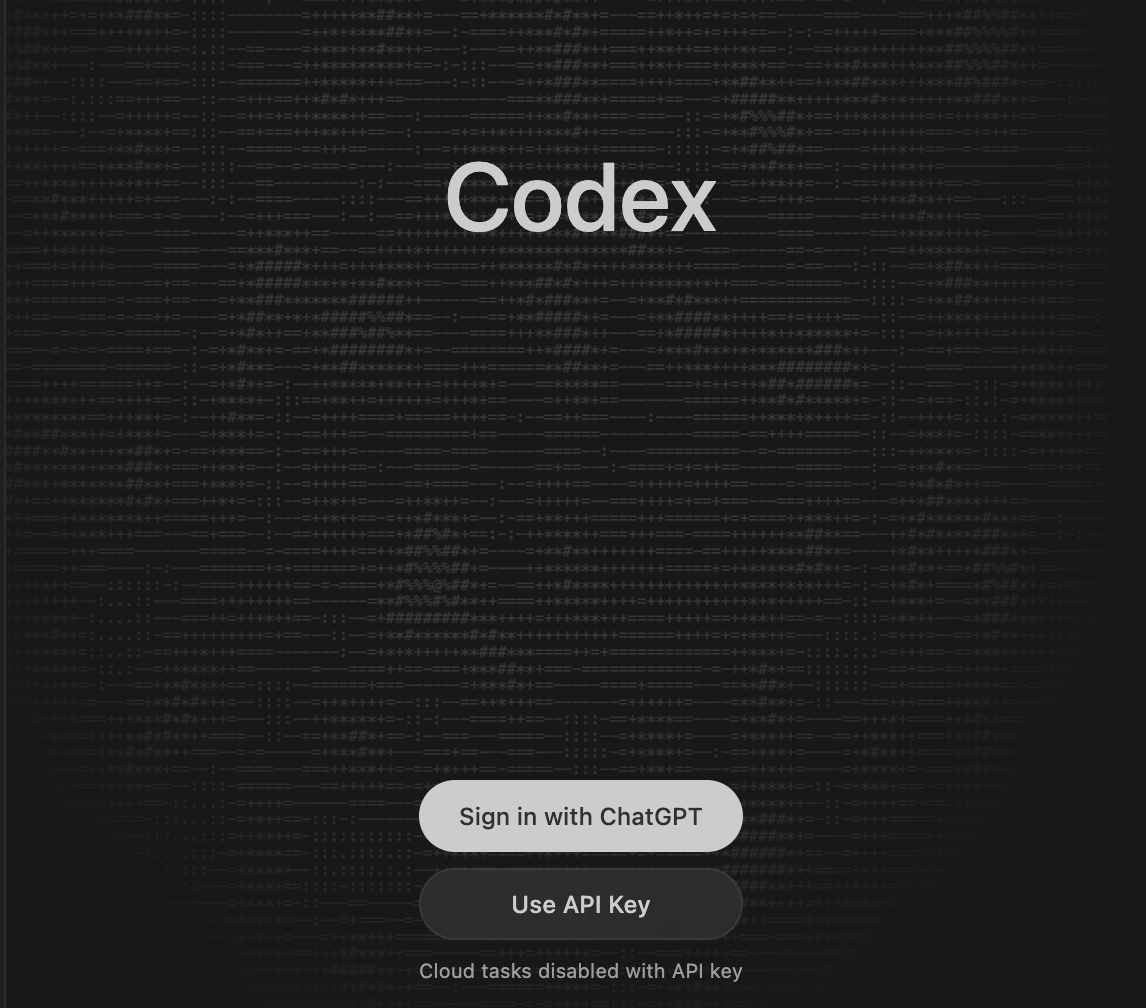
Sign in with ChatGPT

Press Sign in with ChatGPT and follow the login steps in your browser.

If you do not have ChatGPT Edu yet, you can get it for free through Harvard ChatGPT Edu.